A loop video repeats a short clip until the video reaches the length you want. Ambient, sleep, study and meditation channels use them all the time. The idea is simple, but a few choices decide whether the repeat feels invisible or distracting.
In this guide
What is a loop video?
A loop video plays the same short block of footage again and again, so a 30-second clip can fill a 3-hour or 10-hour video. Because the visuals are calm and repeat, they work well as a background for sleep, study, relaxation or meditation.
Pick the right source clip
- Calm, steady motion. Clouds, rain, a fireplace, drifting particles or gentle waves repeat well.
- No one-off events. Anything that happens once in the clip, such as a bird crossing the frame, becomes obvious when it repeats.
- A similar first and last frame. The closer the end of the clip is to its start, the less visible the jump.
- Good resolution. Use footage at least as sharp as your target format: 1920x1080 for YouTube or 1080x1920 for Shorts.
Choose the loop length
A longer loop block feels less repetitive. A 10-second clip repeated for hours is easy to notice, while a loop made from a longer or varied clip is much less so. If you have several clips, you can add more than one to build a longer visual block before it repeats.
Keep the music continuous
The most common mistake in loop videos is audio that restarts every time the visuals restart. The sound should run on its own track from start to finish. In RenderCore the master audio plays continuously over the repeating visual block, so there is no audio cut at the loop point. You can add an optional ambient layer with a separate volume.
Make it with RenderCore
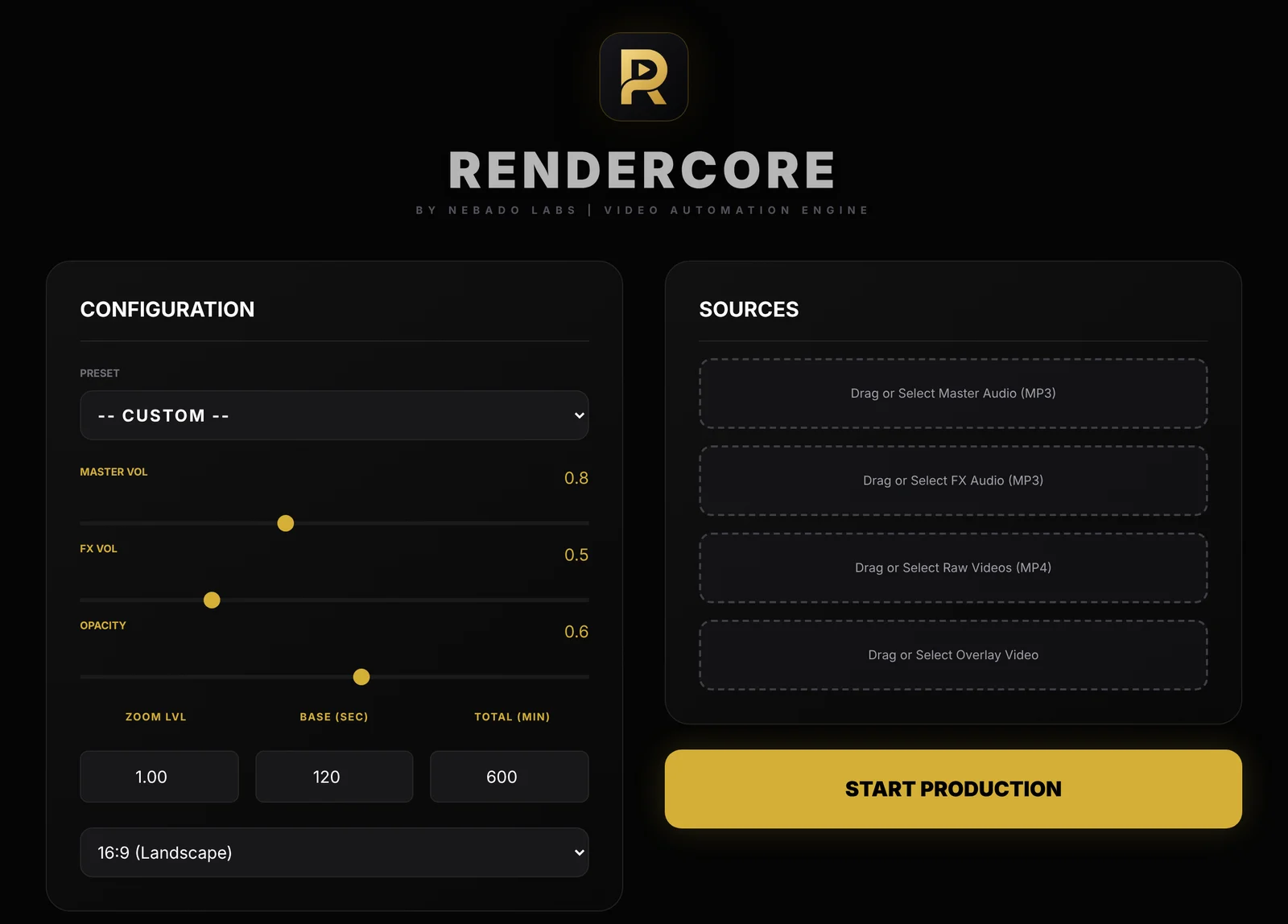
The RenderCore window: Configuration on the left, Sources on the right.
- Add your clip under Raw Videos and your music under Master Audio.
- Set the loop block length in Base (sec) and the total video length in Total (min). For 3 hours, enter 180.
- Choose 16:9 for YouTube or 9:16 for vertical platforms, or pick a preset.
- Click Start Production. RenderCore saves one MP4 to your Videos folder, in the Nebado RenderCore folder.
Rendering happens on your own computer, so your clips and music are not uploaded anywhere.
Try RenderCore free
No timeline dragging, no command line: pick a clip and a track, type the length, start. Every feature, no time limit. Videos made in trial mode carry a small watermark; a one-time license removes it. Windows 10 and 11, 64-bit.
Frequently asked questions
How many hours can I make?
You set the total length yourself, from a few minutes to 10 hours or more. Very long videos produce large files, so check your free disk space.
Can I make vertical videos?
Yes. Choose 9:16 for Shorts, Reels and TikTok, or 16:9 for YouTube.
Do I need video editing skills?
No. You choose your sources, set the length and format, and start production.
Does RenderCore include footage or music?
No. Use your own clips and audio, or material you have the right to use.